Physical Address
304 North Cardinal St.
Dorchester Center, MA 02124
Physical Address
304 North Cardinal St.
Dorchester Center, MA 02124

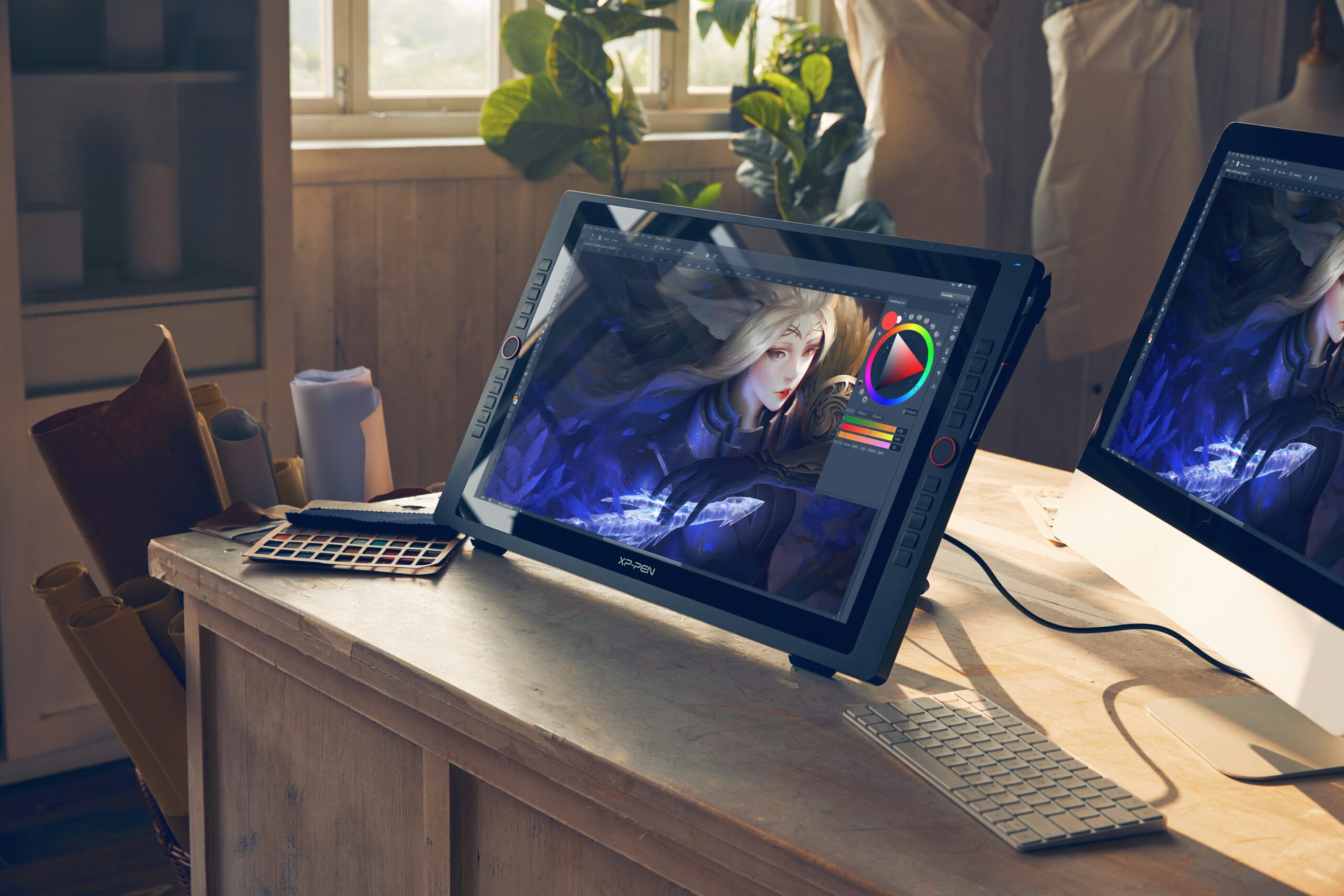
An insight into the tools I use to make my artwork and what products I would recommend for photomanipulation and photo editing.
Just so you know, I will be including affiliate links within this post. That just means, if you click on a link and buy it, I may receive a commission at no cost to you 😊
I have used many digital products over the years on my art journey. Some I still use today! I will be sharing below my most favourite and trustworthy products.
Ok, so starting off small. I began digital painting and photo editing using a Wacom Bamboo way back in the early 2000s, at a time when I wasn’t sure if I wanted to commit to digital art or stay purely Traditional. The Bamboo was a great low-budget option for beginners. It did take a little time and patience to get used to the hand-eye coordination while painting in Photoshop. However, it surprisingly became second nature quite quickly, and I found myself digitally painting more and more.
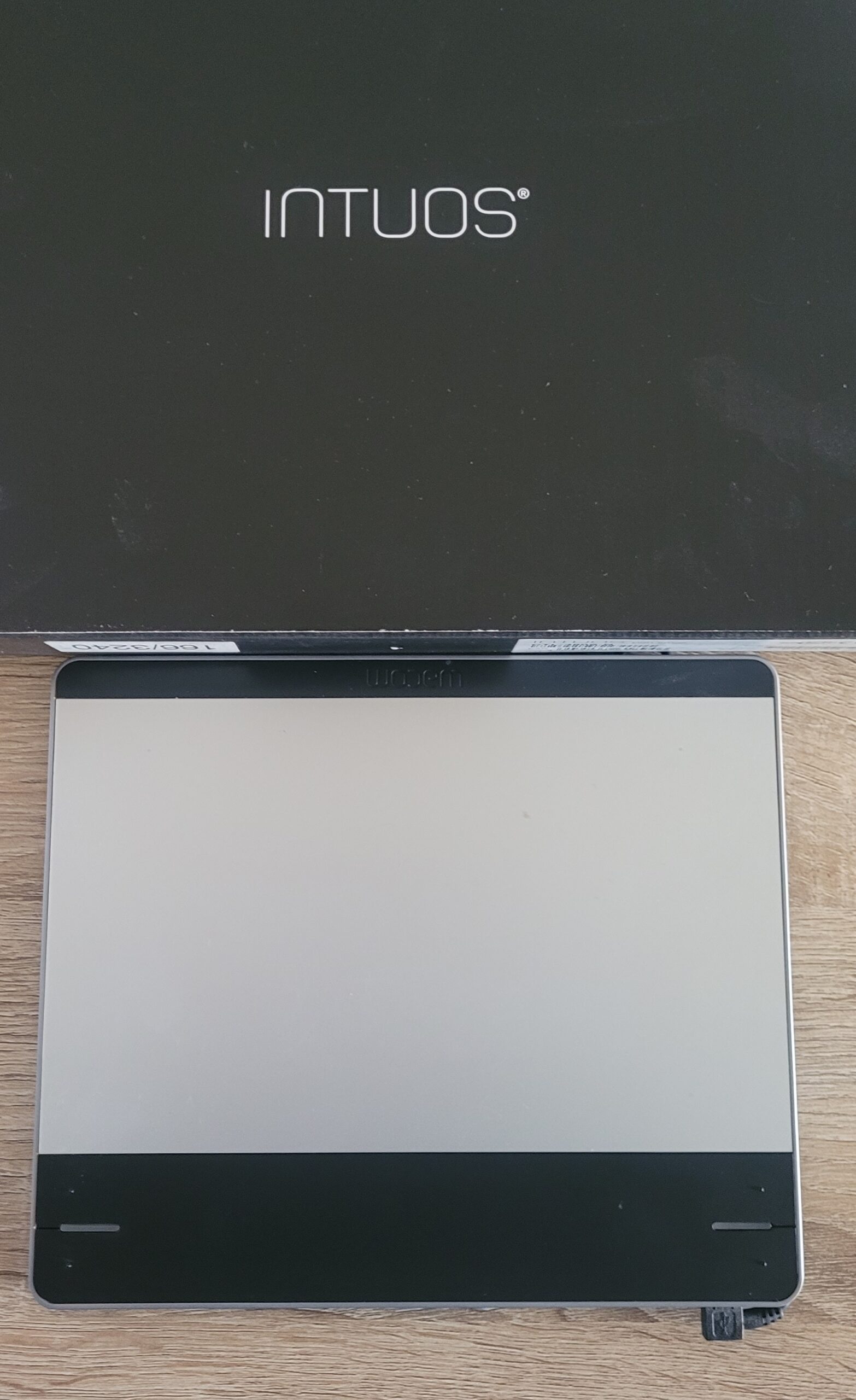
(Very Old) Wacom Intuos
As I became more serious about digital painting I took a leap, purchasing a Wacom Cintiq Companion. This was great in many ways; it was portable so I wasn’t confined to a desk, the screen gave a more traditional experience, and it had internet capability so I could pull references, etc, when needed. Unfortunately, due to overuse, it eventually broke. I was lost without a drawing tablet, but was very lucky to be gifted a Wacom Intuos as a Birthday present. This was an amazing piece of equipment, and not too different from my experience with the Bamboo. It obviously came with more upgrades, such as express keys and, of course, a better Pen. I was able to complete any projects I was working on with ease and would highly recommend it.
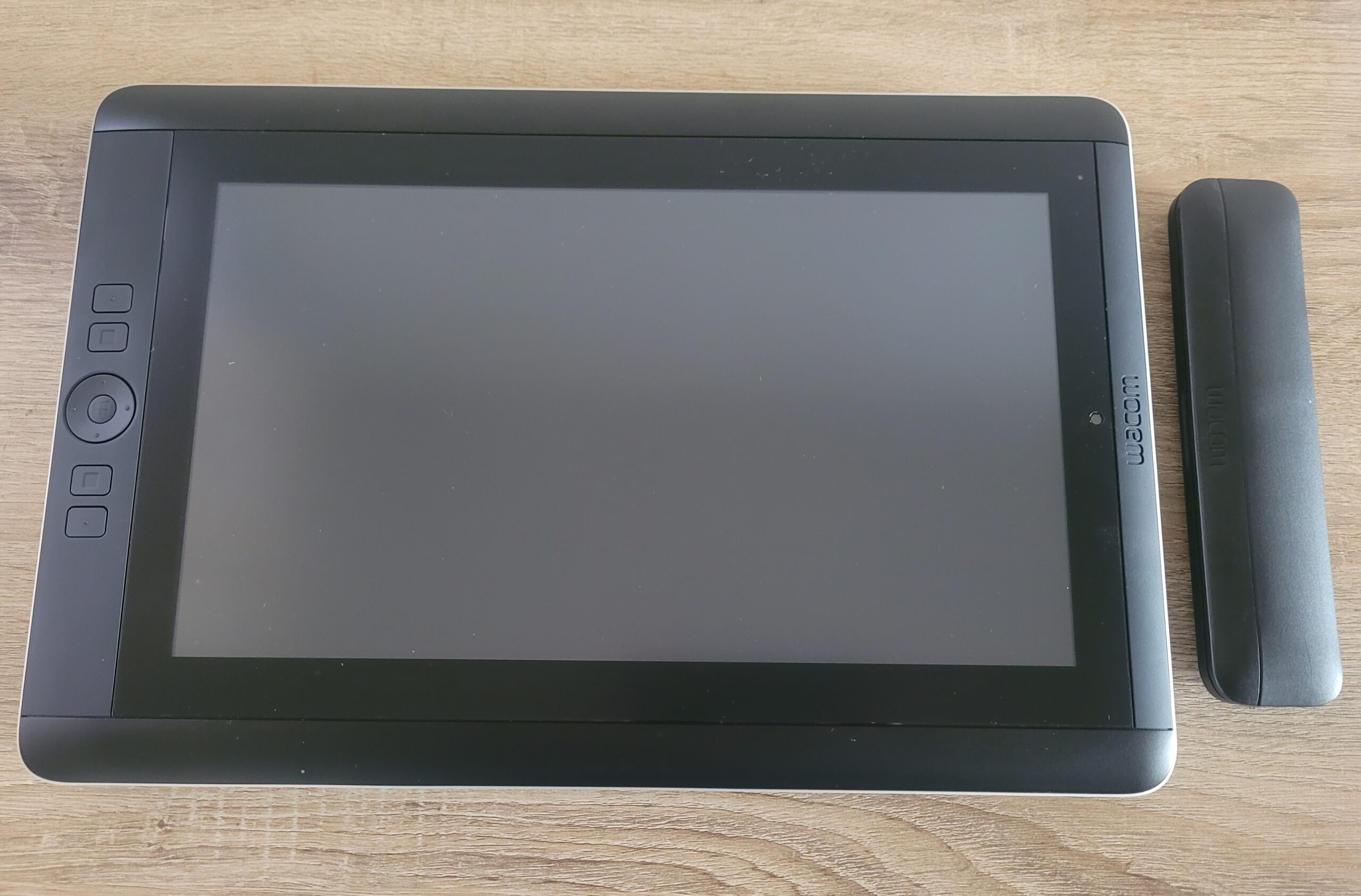
Wacom Cintiq Companion
In 2015, after a lot of research and saving money I invested in a Cintiq 22 (now upgraded and known as the Cintiq 24) In fact, I’m still using it today. Yes, it’s large and takes up a lot of desk space, and of course, the main downfall, it’s very expensive! But it does make up for it in drawing experience and reliability. Other positives;
1. I’ve had no issues with lag. The pen cursor has always been responsive and accurate. The drawing experience is smooth and as close to drawing on paper as you will get.
2. The tablet comes with a stand, that can be adjusted to give more tilt and comfort depending on how you like to draw.
3. You can setup Hotkeys (remote was included with purchase, although I use my keyboard) to speed up your painting process.
4. As with any Wacom product I’ve owned, it was simply plug and play. I’ve never had to adjust settings or find tutorials. It’s one of the many reasons I love the brand.
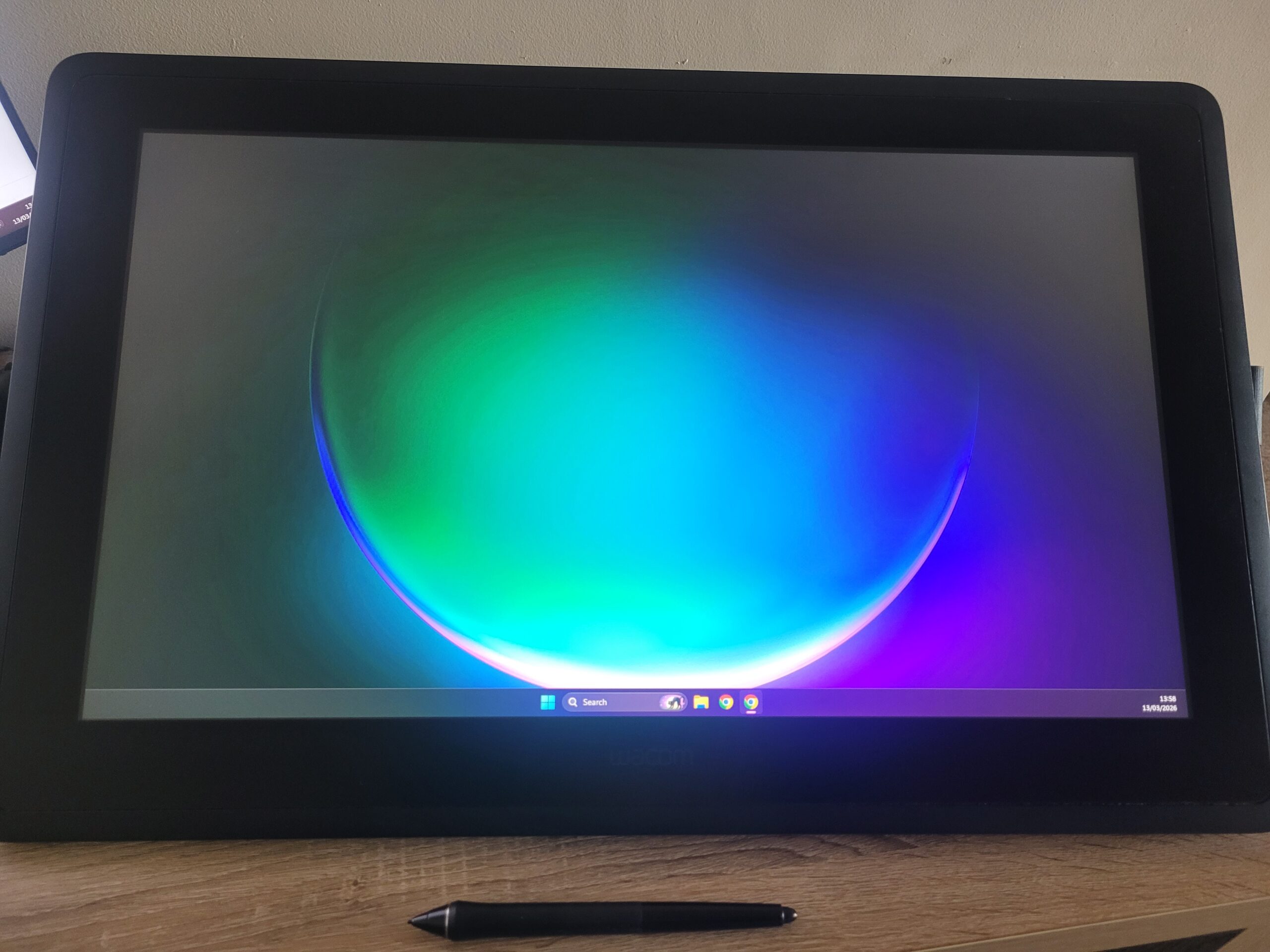
My Trusty Wacom Cintiq 22
Alongside the Cintiq I use a monitor that was recommended to me. The Dell U2419H. It’s not a necessity, but I do find the monitor helps me with colour accuracy while staging photoshoots in-game, balancing my colours when finalising the image and is also a huge visual benefit while gaming too!
…And finally, onto software. I’ve tried quite a few applications over the years. PhotoPea (free version), Adobe Photoshop, Procreate (with the Ipad Air), ClipStudio Paint (both with the Ipad Air & Windows). Each has its own pros and cons depending on the task you need to do. But if you’re looking to edit in-game photography, the best “allrounder” I have personally found is Adobe Photoshop. This has allowed me to not only digitally paint and paint directly onto screenshots but also add/remove objects and adjust lighting/colours. The packages are VERY expensive in my opinion, but I’ve managed to find some good deals during promotional times. I do, however, recommend you look into the early termination fee before you purchase to make sure it’s right for you.